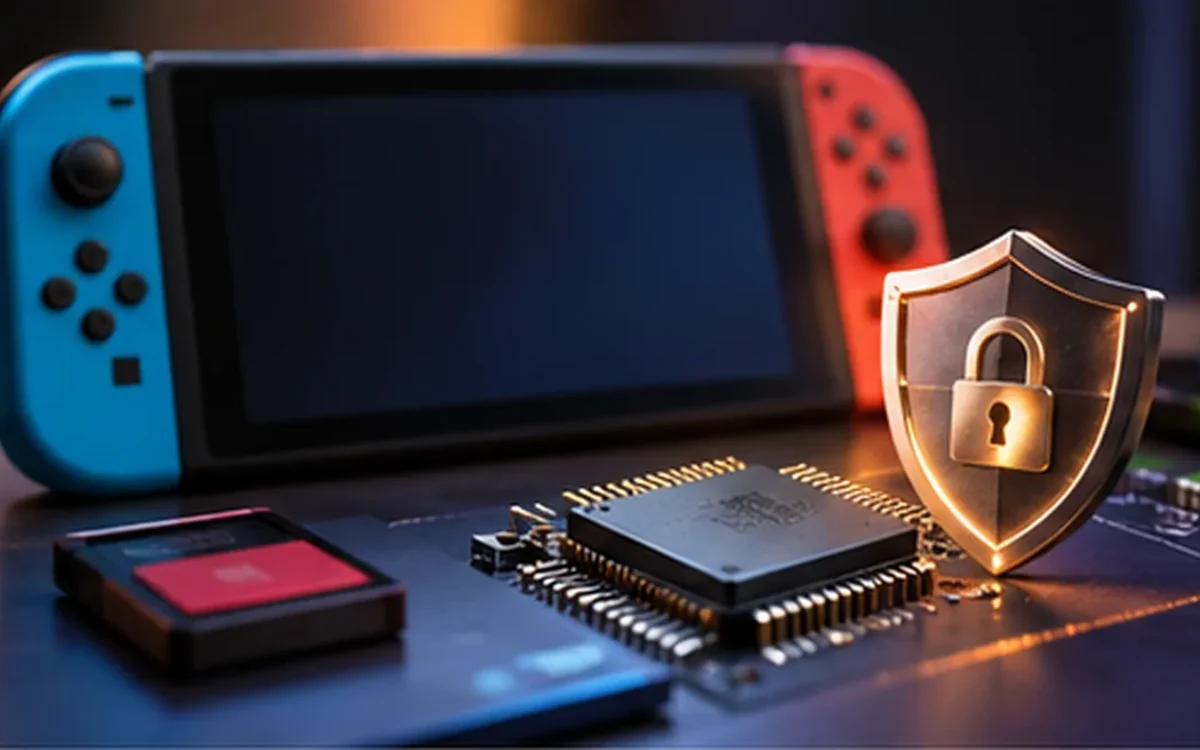
How to Set Up Yuzu Emulator Firmware and Keys Legally?
Yuzu emulator firmware and keys are the two pieces most beginners struggle with. The emulator itself contains no Nintendo system files, so before most games can start you need encryption keys and, for some titles, system firmware taken from a Nintendo Switch you own.
Why Yuzu Needs Keys and Firmware
Switch games are encrypted, and the keys that decrypt them are unique to Nintendo's hardware. Yuzu cannot read a game dump without those keys, which is why the emulator shows a missing keys warning the first time it opens on a new system.
Firmware is different. It contains system modules, fonts and applets that some games call on, such as the software keyboard or Mii editor. Many titles run without firmware installed, yet others crash or show missing text until it is present.
The Files You Will Hear About
| File | Purpose | Required? |
|---|---|---|
| prod.keys | Decrypts game content and system data | Yes, for almost every game |
| title.keys | Holds per-title keys for some content | Sometimes |
| Firmware files | System modules, fonts and applets | For certain games |
Getting Keys and Firmware the Legal Way
The only legitimate source is your own Nintendo Switch. Homebrew key-dumping tools can extract keys from a console you own, and dumping tools can export its installed firmware. These steps require a console capable of running homebrew, so research your model carefully before trying.
Downloading keys or firmware from websites, forums or file-sharing links is a copyright problem and a security risk. These files are Nintendo property, and archives labelled as keys are a common way to deliver malware.
What to Prepare Before Dumping
- A Nintendo Switch you own, along with knowledge of whether it supports homebrew.
- A microSD card with enough free space for the dumped files.
- A trusted, current guide for your console model and firmware version.
- A backup of your console's NAND, recommended by most homebrew guides.
Where Yuzu Expects the Files
Open yuzu, choose the File menu and select the option to open the yuzu folder. Inside, find or create a folder named keys and copy your prod.keys and, if you have it, title.keys into it.
Restart the emulator after copying. The missing keys warning should disappear, and your game list will begin showing titles from the folders you added in the settings.
Installing Firmware
Later yuzu builds added an option in the Tools menu to install firmware from a folder or archive you dumped. Earlier builds expected the firmware files to be copied manually into the NAND system folder inside the yuzu user directory.
After installing, check the emulator's status or about information for the firmware version it detected. Keys and firmware should come from the same console dump so that their versions match.
Setting Up Keys on Android
The Android version guided you through setup on first launch. It asked you to select your prod.keys file from device storage, then to choose the folder containing your game dumps.
Copy the keys from your computer to the phone with a cable or a cloud folder you control, and avoid sharing services that make the file public. Later Android builds also included a firmware installation option in the settings.
Fixing Common Key and Firmware Errors
Errors usually trace back to mismatched versions or misplaced files. Newer games often need keys from a recently updated console, because Nintendo adds new key generations with system updates.
- "Missing keys" warnings mean the keys folder is empty or the file name is wrong.
- Games that do not appear in the list may need newer keys.
- Crashes at the title screen can point to missing firmware.
- Missing text or fonts often disappear after firmware is installed.
When Updating Keys
Replace the old prod.keys rather than keeping several copies in the same folder. Duplicate or renamed files confuse troubleshooting and can leave the emulator reading outdated keys.
Keep a private backup of your dumped files on storage you control. Re-dumping takes time, and having a known-good copy makes reinstalling yuzu or moving to a new PC much easier.
Keeping Your Files Private
Keys are tied to your console, so treat them like personal data. Never upload them to public forums or include them in screenshots when asking for help, and remove them before sharing a yuzu folder with anyone.
Uploading keys can also create legal trouble for you, because sharing them distributes copyrighted material. Describe your issue in words and mention the firmware version instead.
Understanding Key Generations and Updates
Nintendo introduces new key generations alongside major system updates, and games built for newer firmware use those keys. A dump taken from an older console version may unlock earlier games but fail with recent releases.
When a newly purchased game does not appear in yuzu, update your Switch to the firmware it requires, dump the keys again and replace the copy in the keys folder. Re-dump firmware at the same time so both stay matched.
Quick Reference for File Locations
| Item | Desktop location | Android approach |
|---|---|---|
| prod.keys | yuzu folder, keys subfolder | Selected during first-launch setup |
| title.keys | yuzu folder, keys subfolder | Installed from settings when needed |
| Firmware | Tools menu install, or NAND system folder | Install option in later builds |
Exact menu names can differ slightly between builds and forks, so check the help text in your version if an option is missing.
Why Shortcuts Are Not Worth It
Search results often promise ready-made key and firmware packs that skip the dumping process. These packs break copyright law, frequently contain mismatched versions and are a favourite way to hide malicious software inside a trusted-looking archive.
Dumping from your own Switch takes longer the first time, but it gives you files that match your games, keeps you on solid legal ground and removes the guesswork when something stops working.
Conclusion
Yuzu emulator firmware and key setup becomes simple once you know what each file does and where it belongs. Keys unlock your games, while firmware supplies the system components some titles need.
Dump both from your own Switch, place them in the correct folders, keep their versions matched and never download them from random websites.
 Is There a Yuzu Emulator for iOS?
 Yuzu Emulator PC Download Reddit Advice: Separating Safe Tips From Risky Links